
Does Canvas have AI detection? No, Canvas has no built-in AI detector. Instructure, the company behind Canvas, doesn’t scan your submissions for AI writing. When an AI score does show up in Canvas, it comes from a separate tool your school connected, usually Turnitin, Copyleaks or GPTZero. And it only appears on assignments where that tool is switched on.
That’s the short answer. The longer one matters more, because “Canvas doesn’t detect AI” and “nobody will check my paper for AI” are not the same thing.
Here’s a common moment. Priya uploads a 1,500-word history essay to Canvas at 10:40 p.m. The upload page shows a line she’s never read closely: “This assignment submission will be reviewed by Turnitin.” Does that mean an AI check? Will her professor see a percentage? Can she see it?
If you’ve had that moment, you’re not alone, and the worry is reasonable. Most articles on this topic either scare you (“Canvas sees everything”) or wave it away. This guide does neither. You’ll learn which AI detectors work inside Canvas, exactly where your instructor sees the result, what Canvas can and can’t track on its own, and how to check your work before you upload it.
- Canvas has no native AI detection. An Instructure Community coach confirmed in February 2025 that Canvas doesn’t offer an AI-generated paper detection feature.
- Any AI score in Canvas comes from an integrated tool: most often Turnitin, sometimes Copyleaks or GPTZero.
- Turnitin’s AI writing report is visible to instructors and admins, not students, and scores from 1% to 19% show as an asterisk.
- Canvas quiz logs can show that you “stopped viewing” the quiz page, but Canvas’s own guide says quiz logs should not be used to identify cheating.
- You can’t run your school’s checker yourself, so checking your draft with several detectors before you upload is the closest you’ll get.
Does Canvas Have AI Detection Built In?
Canvas does not have built-in AI detection, so it can’t detect AI on its own. It’s a learning management system: it hosts your course, collects submissions and passes grades around. Analyzing whether text was written by AI isn’t part of the core product.
An instructor asked about it on the Instructure Community in February 2025. A community coach answered that Canvas does not provide instructors with access to an AI-generated paper detection feature and suggested submitting it as a feature idea. “The short answer is no,” the reply ended.
So how does Canvas detect AI at all? Through integrations. Schools connect outside tools to Canvas using LTI, a standard that lets third-party apps plug into an LMS. When you submit an assignment, Canvas sends your file to that tool. The tool analyzes it and sends a result back, which your instructor sees next to your submission.
In other words, Canvas is the messenger, not the detector. Whether your paper gets an AI check depends on two choices you don’t control:
- Whether your school licensed an AI-capable tool.
- Whether your instructor turned it on for that assignment.
What AI Detector Does Canvas Use?
The AI detector Canvas uses is whichever one your school connects. The same goes if you’re asking what AI checker does Canvas use: there’s no default. Canvas doesn’t ship with one, so the answer differs from campus to campus. In practice, three tools come up most often.
Turnitin
Turnitin is the most common answer, and it’s what people mean when they search for the “AI detector in Turnitin within Canvas.” Many schools already license Turnitin for plagiarism checks. The AI writing report comes with Turnitin’s Originality license, so a school can use Turnitin in Canvas without having AI detection at all.
Here’s how it appears in Canvas, based on the University of Melbourne’s Canvas guide:
- With the newer LTI 1.3 integration, instructors see an AI Writing column and click the percentage to open the report.
- With the older Canvas Plagiarism Framework, they open Turnitin Feedback Studio from SpeedGrader or the Gradebook and click the AI writing score there.
- Some schools use a third setup, the Canvas Document Processor, with a “View Turnitin AI Writing Report” button in SpeedGrader.
- The file needs at least 300 words of prose, no more than 15,000 words, in English, as a .docx, .pdf, .txt or .rtf. Otherwise the report says “AI writing detection unavailable.”
- Since July 2024, scores from 1% to 19% show as
*%with no highlighted text, because Turnitin found low scores less reliable.
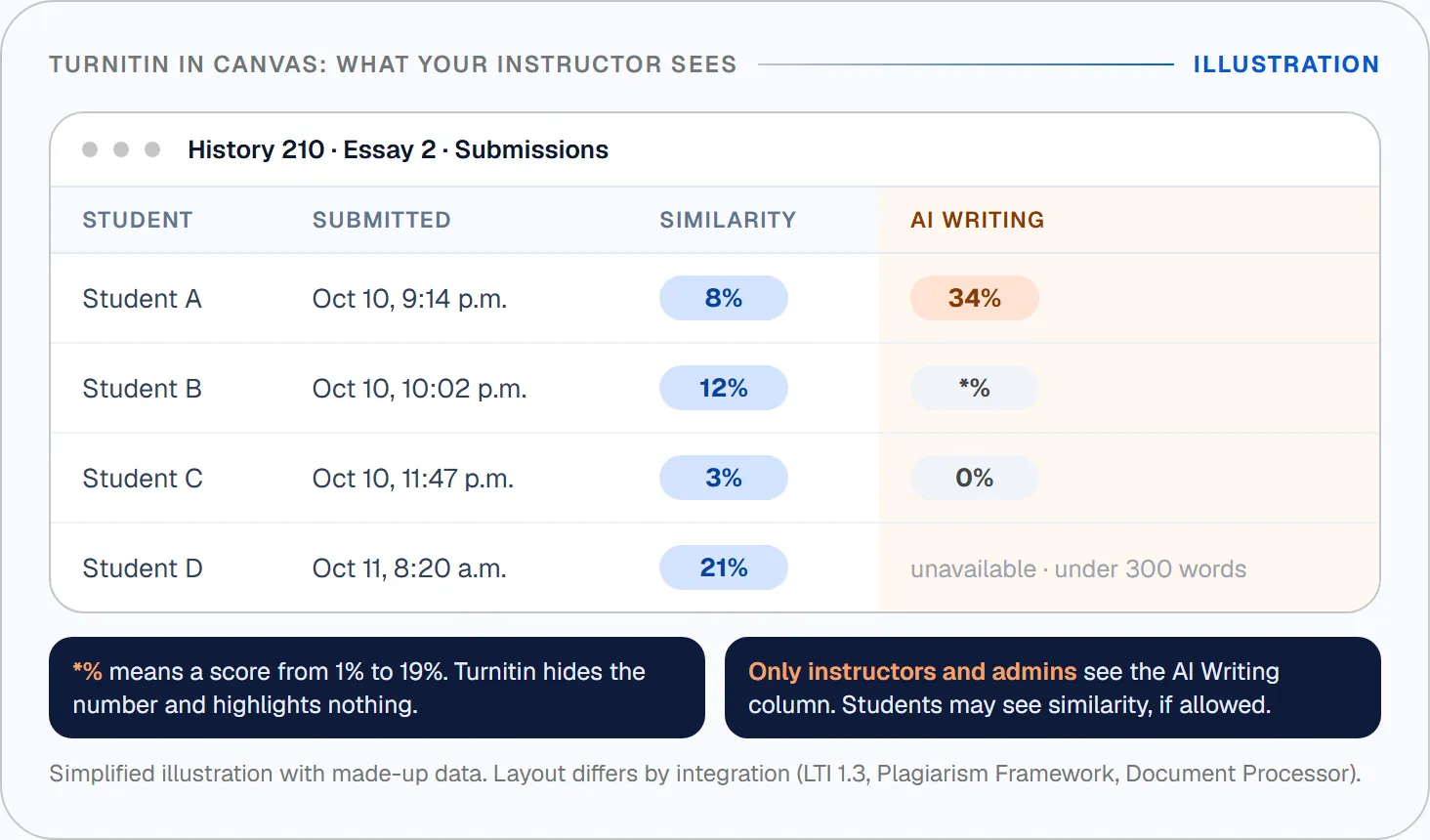
One detail surprises most students: the AI report is for instructors and administrators only. The University of Kentucky, for example, states that students cannot see the score. Your instructor may let you see the similarity report, but not the AI one.
Copyleaks
Some schools use Copyleaks instead. Utah State University, for example, replaced Turnitin with it. The key difference is where the AI result lives.
According to Utah State’s Copyleaks guide, AI detection is not included in the similarity score. It sits on a separate AI Content tab inside the full Copyleaks report. That means a low similarity score in SpeedGrader says nothing about whether AI was flagged.
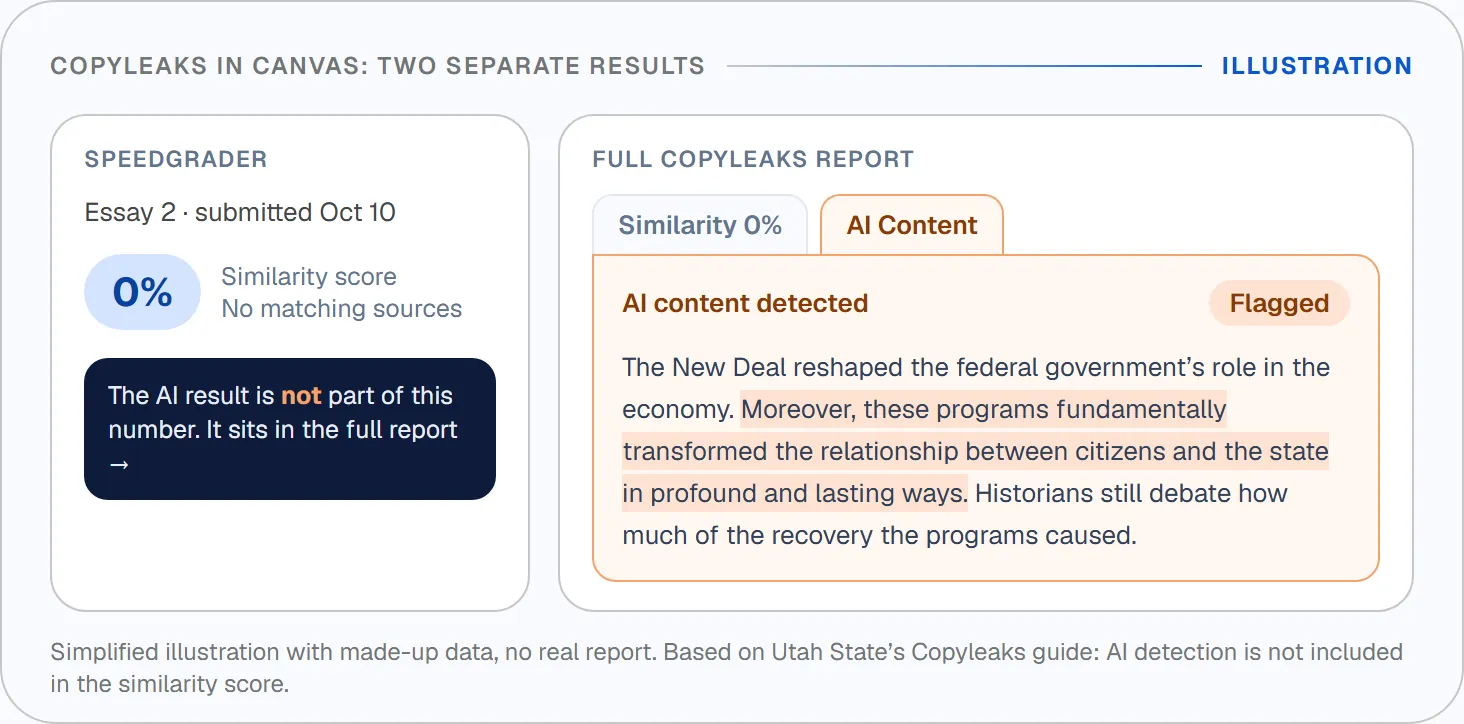
On the student side, Copyleaks’ own Canvas student guide says you’ll find a Similarity Score under “Submission Details” if your instructor lets students see the report. The same guide answers a question many students don’t think to ask: Grammarly changes will be flagged as AI content.
GPTZero
GPTZero offers a Canvas integration for schools on its institutional and enterprise plans. According to GPTZero’s integration page, results appear alongside submissions in SpeedGrader, with sentence-level highlights. That’s the vendor’s description; how it looks at your school depends on setup.
Canvas AI detector options compared
| Tool | How it connects to Canvas | Where your instructor sees it | Can you see the AI result? |
|---|---|---|---|
| Turnitin | LTI 1.3, Canvas Plagiarism Framework or Document Processor | AI Writing column or Feedback Studio, via SpeedGrader / Gradebook | No, instructors and admins only |
| Copyleaks | Canvas Plagiarism Framework | AI Content tab of the full Copyleaks report, not the SpeedGrader score | Only if your instructor opens the report to students |
| GPTZero | Institutional integration | Alongside the submission in SpeedGrader (vendor claim) | Depends on school settings |
| None connected | Not applicable | No AI score at all | Not applicable |
An AI Writing column or the AI score in Feedback Studio, opened from SpeedGrader. Scores from 1% to 19% show as *%.
The similarity report at most. Turnitin’s AI report is for instructors and admins only.
Want a sense of how detectors read your writing before your instructor does? You can run your draft through the Draftout AI detector, which scores it with several detectors instead of one.
To see the instructor’s side for yourself, this short walkthrough from the University of Memphis teaching center shows how Turnitin’s AI writing detection looks inside Canvas:
What Your Instructor Actually Sees in Canvas
Your instructor sees less than most students fear, and a bit more than some assume.
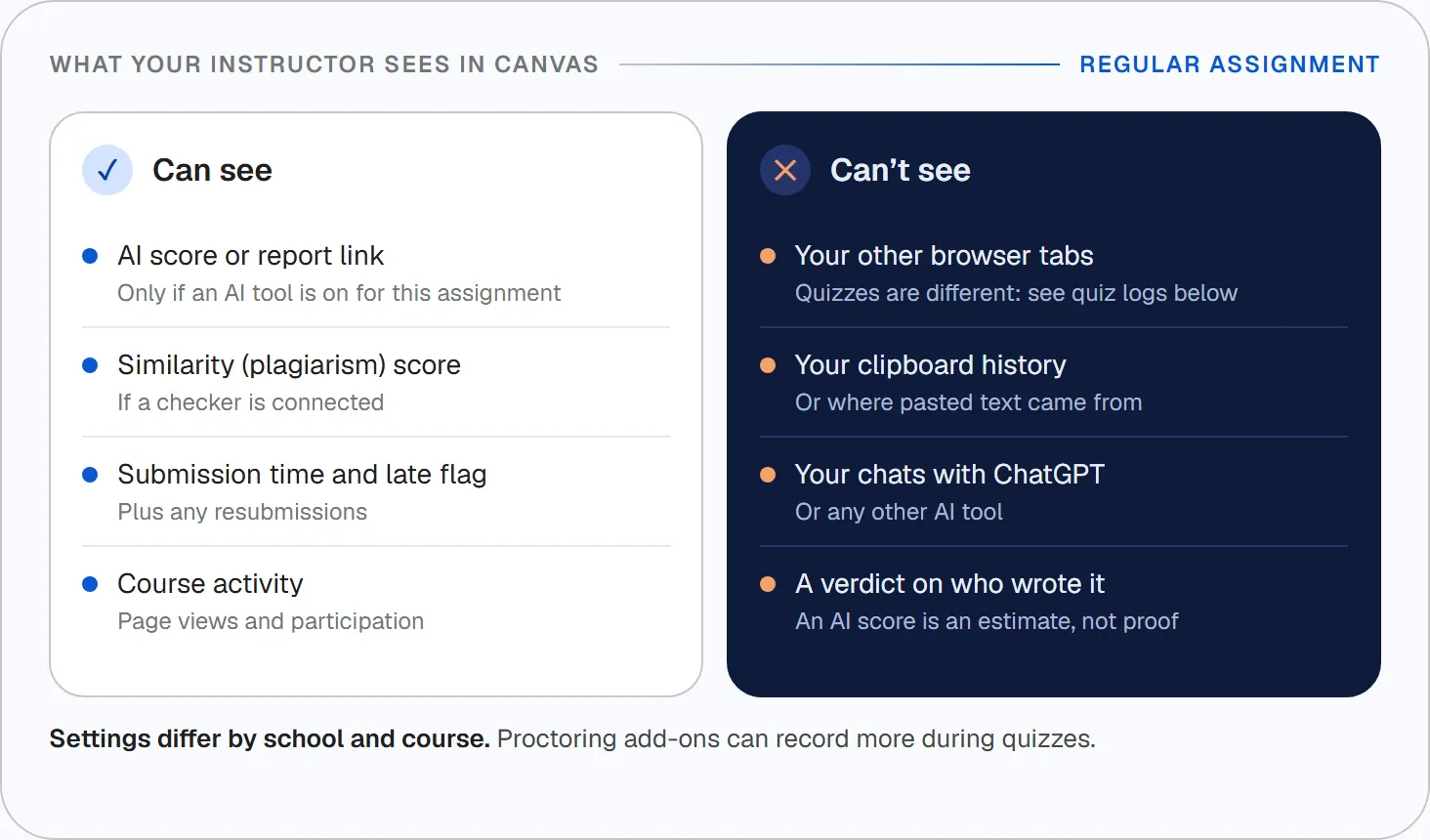
What they can see:
– An AI percentage or report link next to your submission, but only if an AI tool is enabled on that assignment.
– The similarity (plagiarism) score, if a checker is connected.
– When you submitted, whether it was late, and any resubmissions.
– Course activity data, such as page views and participation.
What they can’t see on a normal assignment:
– Your other browser tabs.
– Your clipboard history or where pasted text came from.
– Anything you typed into ChatGPT or another AI tool.
The gap between those lists is where most rumors start.
Can Canvas Detect ChatGPT, Copy-Paste or Tab Switching?
Canvas can’t detect ChatGPT by itself, and it doesn’t record what you copy and paste. Tab switching is different: it can appear in quiz logs, with caveats. Here’s how each one works.
| Question | Short answer |
|---|---|
| Can Canvas detect ChatGPT? | Not on its own. Only an integrated AI detector can flag text as likely AI, and that’s an estimate, not proof. |
| Can Canvas see if you copy and paste? | A normal text box doesn’t record where text came from. Copied published text can still match in a similarity check. |
| Can Canvas see if you switch tabs? | On regular assignments, no. In quizzes, the quiz log can show when you left the quiz page. |
| Can Canvas lock down a quiz? | Only with an add-on proctoring tool such as Respondus LockDown Browser, Honorlock or Proctorio. |
What quiz logs really show
Canvas quizzes keep an action log that instructors can open for each student. According to Canvas’s guide to viewing a quiz log, it records a status and a timestamp for each quiz action: when you viewed a question, when you answered it, and when you “stopped viewing the Canvas quiz-taking page.”
That last status appears when you navigate away from the quiz: you close the browser tab, open a new tab, or switch to a different program. When you come back, the log shows “Resumed.” The same guide warns that autosave can make some questions look answered at the start of a quiz, so the log may not reflect the real order of your answers.
- Session started
- Viewed (and possibly read) question #3
- Answered question #3
- Stopped viewing the Canvas quiz-taking page
- Resumed
- Answered question #4
Opening a new tab takes you away from the quiz page, so the log adds “Stopped viewing” and “Resumed.” It shows that you left, not what you looked at.
So the log records that you left the page, not what you looked at or why. Canvas is explicit about the limits: its guide says quiz logs should not be used to validate academic integrity or identify occurrences of cheating. Cornell’s teaching center likewise advises against using Canvas quiz logs as standalone evidence of cheating, noting that log data can capture clicks triggered by innocent actions such as notifications, updates or connectivity issues.
Consider Marcus, who took an online biology quiz when a calendar reminder popped up and he clicked it, opening his calendar app for a moment. His quiz log recorded that he’d stopped viewing the quiz page, then resumed. His instructor asked about it, Marcus explained, and that was the end of it. A log entry is a reason for a conversation, not a verdict.
Does Canvas Check Discussion Posts for AI?
Usually not automatically. Plagiarism and AI integrations are built around assignment submissions. Turnitin’s Canvas guide lists Standard, Clarity, Multipart and Handwritten assignments, and discussions aren’t among them.
That doesn’t mean posts are never checked. Copyleaks, for example, offers instructors an Instructor Scan Tool for scanning uploaded or pasted text outside an assignment, and its help center names discussion board posts as one use. If your course has an AI policy, assume it applies to discussions too.
How to Know if Your Canvas Assignment Is Checked for AI
You can usually find out in a few minutes. Work through these steps:
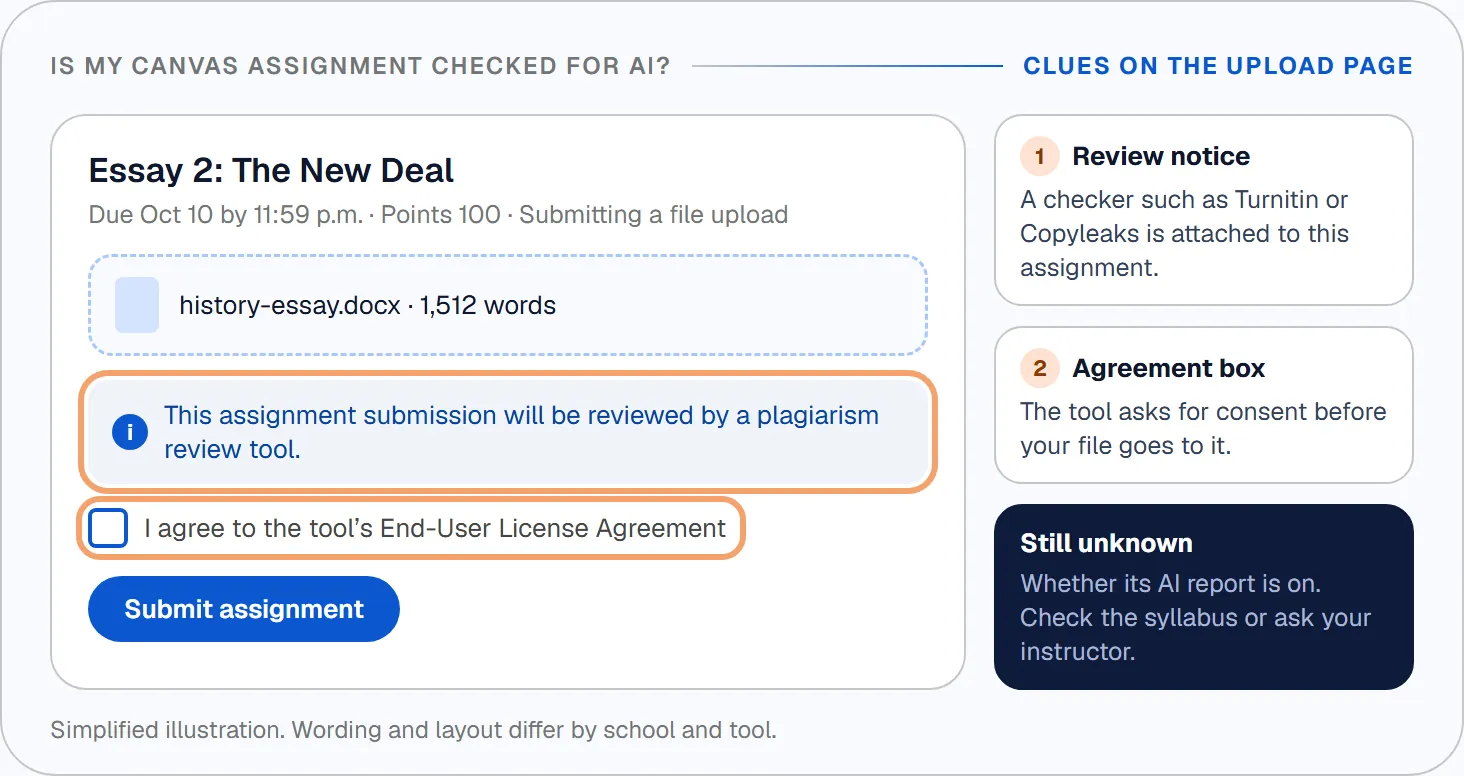
- Read the submission page. Look for a line like “reviewed by Turnitin” or a Copyleaks notice, or a checkbox asking you to agree to a plagiarism-review service.
- Check the syllabus. Many courses now state their AI policy and whether tools are used.
- Look up your school’s policy. Academic integrity or teaching-center pages often say whether AI detection is on. Some schools, including Vanderbilt and the University of Pittsburgh, have switched Turnitin’s AI detection off. See which AI detectors colleges use and which ones turned detection off.
- Ask your instructor. A simple message works: “Is AI detection enabled for this assignment, and how do you use the result?”
Remember that a similarity report and an AI report are separate. Seeing one doesn’t tell you whether the other is on.
How to Check Your Work Before You Upload It to Canvas
You can’t run your school’s Turnitin check yourself. What you can do is prepare, so that whatever score appears, you’re ready to explain your work.
Keep a record of your process
Write in Google Docs or Word with version history on. Save outlines, notes and earlier drafts. If questions come up, a document that grew over several days is strong evidence that the writing is yours.
Check your draft with more than one detector
Different detectors often disagree on the same text. In our test to find the most accurate AI detector, ten tools rated the same AI-written essay anywhere from 4% to 100% AI. That’s why one score shouldn’t decide anything, including your own sense of whether a draft is fine.
Draftout’s AI checker scores your text with several detectors (Originality.ai, GPTZero, Copyleaks and Scribbr) and highlights the sentences that drive the score. It doesn’t run Turnitin, and nothing outside your school can show you exactly what Canvas will show your instructor. Think of it as a second opinion before you submit.
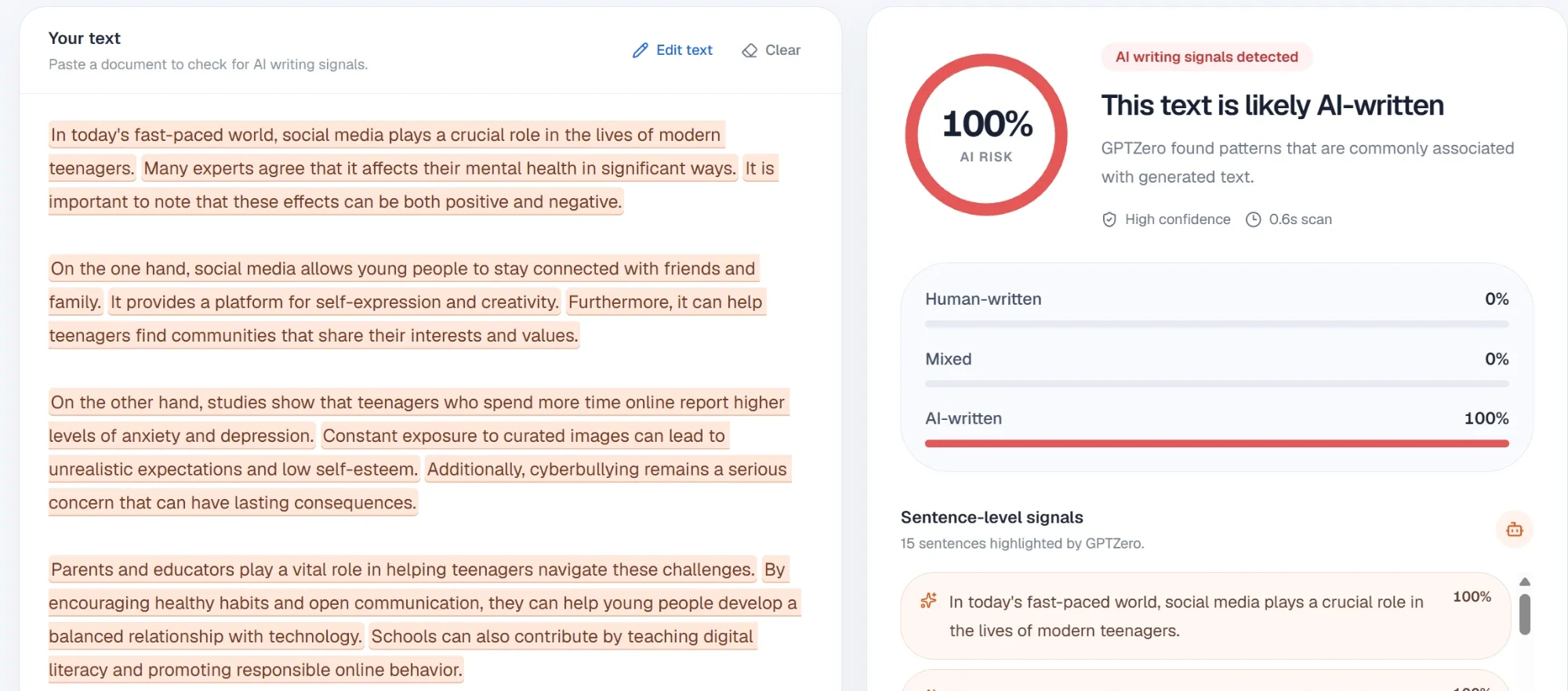
If a passage reads as AI-like, revise it in your own voice and make sure every borrowed idea is cited. Our guide on how to detect AI-written text explains how detectors decide what looks AI-written.
If you’re flagged after submitting
Stay calm. Take Sam, a sophomore whose instructor emailed about a 35% Turnitin AI score on a lab report. Sam replied the same day with the Google Docs version history and an outline from the week before. The instructor reviewed it and closed the question.
An AI score is one data point, and detectors make mistakes, especially on formal or formulaic writing. Show your process, ask what the score was based on, and follow your school’s integrity process if it goes further.
Check your text before you upload it. Paste your draft into the Draftout AI detector and see how several detectors score it, sentence by sentence.
Frequently Asked Questions
Can Canvas detect AI if I used ChatGPT?
Canvas can’t detect AI on its own. If your school connected an AI detector like Turnitin, Copyleaks or GPTZero, that tool estimates how likely your text is to be AI-written. It’s a probability, not proof of how you wrote it.
Can my professor see if I copy and paste on Canvas?
Not on a regular assignment. A Canvas text box doesn’t log where text came from. However, text copied from published sources can match in a similarity check, and AI-generated text can be flagged by an AI detector if one is enabled.
Can Canvas see if I switch tabs during a quiz?
Sometimes. In a Canvas quiz, the log shows “stopped viewing the Canvas quiz-taking page” when you open a new tab, close the tab or switch to another program, and “Resumed” when you come back. It can’t see what you looked at, and Canvas says quiz logs shouldn’t be used to identify cheating.
Does Canvas check discussion posts for AI?
Usually not automatically. AI and plagiarism tools typically run on assignment submissions. An instructor can still check a post manually, for example with Copyleaks’ Instructor Scan Tool, so follow your course’s AI policy in discussions too.
Can I see my own AI score in Canvas?
Usually no. Turnitin’s AI writing report is visible to instructors and administrators only. Your instructor may share the similarity report, but the AI report is generally not shown to students.
Does a 0% similarity score mean no AI was detected?
No. Similarity and AI detection are separate checks. With Copyleaks, for example, the AI result sits on its own tab inside the full report, so a 0% similarity score can appear next to an AI flag.
So, Does Canvas Have AI Detection?
Not by itself. Canvas passes your submission to whatever tool your school connected, and that tool, usually Turnitin, does the checking.
Keep these points in mind:
- No built-in detector exists in Canvas. AI scores come from Turnitin, Copyleaks or GPTZero.
- The AI report is usually instructor-only, and it’s separate from the similarity score.
- Quiz logs and activity data are prompts for a conversation, not proof of cheating.
- Your best protection is a visible writing process and a check before you submit.
Before your next upload, take two minutes: read the submission page, check the syllabus, and run your draft through the Draftout AI detector for a second opinion from several detectors. Then submit with confidence.

Table of contents
